

Resize a cutter in Designer
Make a cutter bigger or smaller, keep or change its proportions, and see how big the finished cutter will be.
To make a cutter bigger or smaller, change Size in Cookiecad Designer and download the cutter again. Size is the size of your shape's outline. The finished cutter is a little bigger, because the handle rim sticks out around that outline: with the default handle, a cutter set to 75 mm measures 83 mm across, 4 mm more on each side.
Resizing in Designer keeps the blade at the thickness and depth you set. Resizing the downloaded file in your slicer would make the blade thicker or thinner too.
To follow the examples, open Designer and choose Square under Start with a basic shape.
Make a cutter bigger or smaller
- Select 3D Preview to show the cutter and its settings.
- In the settings panel, find Size under Essentials.
- In Units, choose mm or inches.
- In Set size of, choose Longest side.
- In Size, enter how long the longest side of the outline should be, for example 75 mm.
- When the preview updates, select Download STL. Sign in if Designer asks you to.
The shape keeps its original proportions; only its longest side is set to the number you enter. Switching Units changes how the number is shown, not the size of the cutter: 3 inches and 76.2 mm are the same outline.
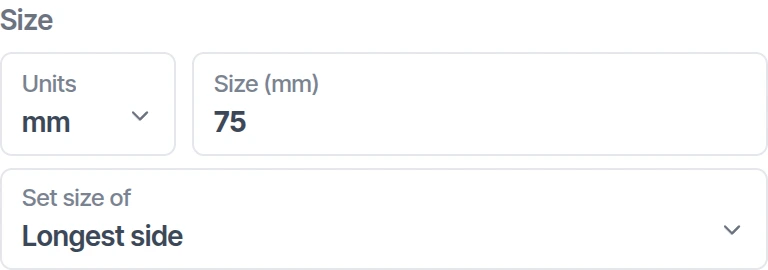
Set a different width and height
- In Set size of, choose Width and height.
- Leave the lock closed to keep the shape's proportions, or select it to unlock and stretch the shape.
- Enter Width. With the lock closed, Height changes to match.
- With the lock open, also enter Height.
- When the preview updates, download the cutter again.
For example, unlock the Square, then enter 75 mm for Width and 50 mm for Height to make a 75 × 50 mm rectangle. Closing the lock again keeps the rectangle's new proportions; it does not turn it back into a square. To return to the original proportions, choose Longest side again.
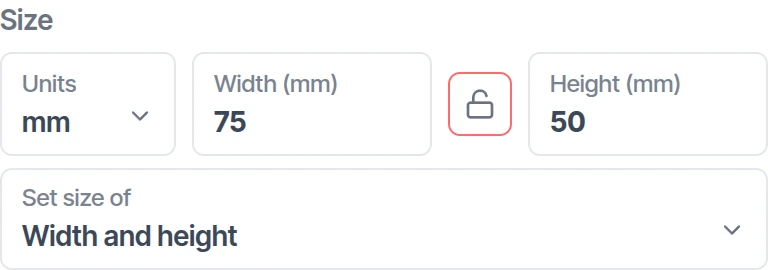
Height is how tall the shape is on screen, from bottom to top, not how tall the cutter stands. Blade depth (in V7, Depth in the Blade section) sets how tall the cutting wall is. Stretching the shape does not change Blade thickness (in V7, Thickness in the Blade section).
Check how big the finished cutter will be
Size measures only the outline. Designer then adds the cutter wall and the handle rim around it, so the downloaded cutter is bigger than Size. Your slicer, the program that prepares a file for printing, shows the size of the whole cutter.
With the Square, the default rectangular handle and Base width at 4 mm (how far the rim reaches past the outline on each side), the finished cutters measured:
| Size setting | Finished cutter, across the rim |
|---|---|
| 75 mm, Longest side | 83 × 83 mm |
| 75 × 50 mm, Width and height | 83 × 58 mm |
These were measured in STL, OBJ and 3MF files generated by Designer. In both cases the cutter is 8 mm wider and taller than Size: 4 mm of rim on each side. Other handles, blade settings and added features can change that difference, so check the outside size in your slicer when the cutter has to fit a space. See the Size reference and Handle settings.
Make several sizes
Change Size and download once for each size you need. Every file keeps the same blade, so print each one at its original scale in your slicer; resizing it there also changes the blade.
Some cutter types size differently:
- Cutter Set (Premium): Size of largest sets the largest piece, and the other pieces keep their proportions to it. Pieces have no separate size fields.
- Multi Cutter (Premium): Size sets each repeated cutter, not the whole grid.
- Texture Roller (Premium): Source size sets one tile of the pattern.
- Stencil (Premium): the shape and the sheet have their own size settings.
Zooming the preview, or resizing the dough sheet in the scene, does not change the size of the cutter you download.